
The quickest way, on most TVs:
- Feel under the TV’s bottom edge — centre, or the right corner — for its own button. On some sets it’s on the back, lower right.
- Press and hold it. A small menu opens on screen.
- Move to Input or Source (push the button sideways, or press it repeatedly), then press to choose the HDMI port you want.
No button, or can’t find it? Pick another of the four ways:
- Use the TV’s own button — by brand: Samsung · LG · TCL and Roku TVs · Vizio · Element
- Switch on the device you want to watch (HDMI-CEC)
- Use your phone
- Move the cable to the input the TV is on
1. Use the TV’s own button
Nearly every TV has a physical button — often a small joystick — under the front panel, usually centre-bottom or bottom-right. On most sets:
- Press and hold to open a menu that includes Source / Input.
- Push left/right or press repeatedly to move through the inputs.
- Press to select.
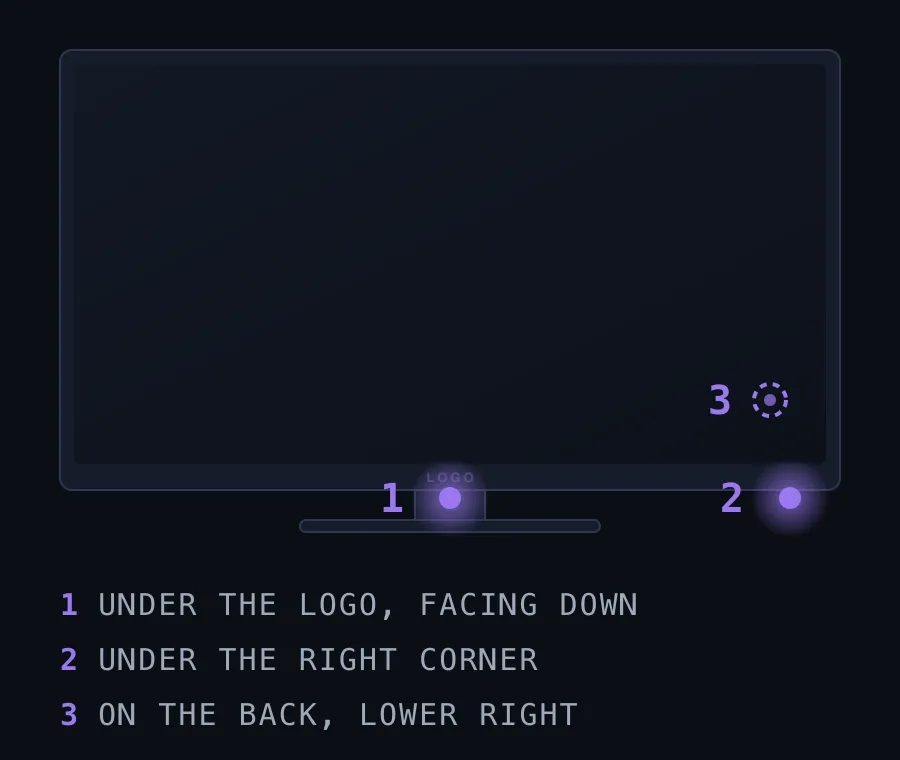
It’s fiddly the first time because the button is hidden. It isn’t on every TV, though: a few budget sets have only a power button, and on those the input has to be changed another way (sections 2 and 3).
Locations vary by model and year, so treat what follows as where to look first. If you can’t find it, search your model number plus “manual” — the manual has a diagram of the buttons.
Samsung TV: change the input without the remote
A small joystick under the centre of the bottom edge, or on the back near the bottom right. Press and hold it to open a menu with the input (Source) list, push left or right to reach the HDMI port you want, and press to select. More on where Samsung puts it, by model year: turning on a Samsung without the remote.
LG TV: change the input without the remote
The joystick sits under the LG logo at the centre of the bottom edge. Press and hold it to open LG’s on-screen menu, which has Input next to power off. More: turning on an LG without the remote.
TCL, Hisense and other Roku TVs
On TCL Roku TVs the button is usually at the bottom centre of the front bezel, just under the logo; on some models it is on the back instead. On any Roku TV, the easiest route is a phone remote, because Roku shares its input names with remote apps (section 3).
Vizio TV
It depends on the year: on the back near the lower-left corner or under the HDMI ports, on the side, or as touch buttons on the front. One of them is Input. A Vizio SmartCast TV on your Wi-Fi can also switch inputs by name from a phone (section 3).
Element TV
Under the logo or on the back. Some newer Element TVs have only a power button, so you can’t switch inputs from the set itself: use your phone (section 3) or a replacement remote.
The brand on the bezel isn’t what matters
Many TVs from brands like TCL, Element, Hisense and Westinghouse run Roku TV, Google TV or Fire TV underneath. The home screen gives it away: Roku shows a grid of channel tiles, Google TV a row of recommendations across the top, Fire TV Amazon’s rows of apps. That matters because a phone remote for that system works whatever logo is on the front — for a Roku TV, any Roku remote app, including Zapp.
2. Let HDMI-CEC do it automatically
Turn on the device you want to watch — a console, a Blu-ray player, a streaming stick — and if HDMI-CEC is enabled (it usually is), the TV switches to that input on its own. Each brand has its own name for it:
- Samsung — Anynet+
- LG — SimpLink
- Sony — BRAVIA Sync
- Roku — 1-Touch play
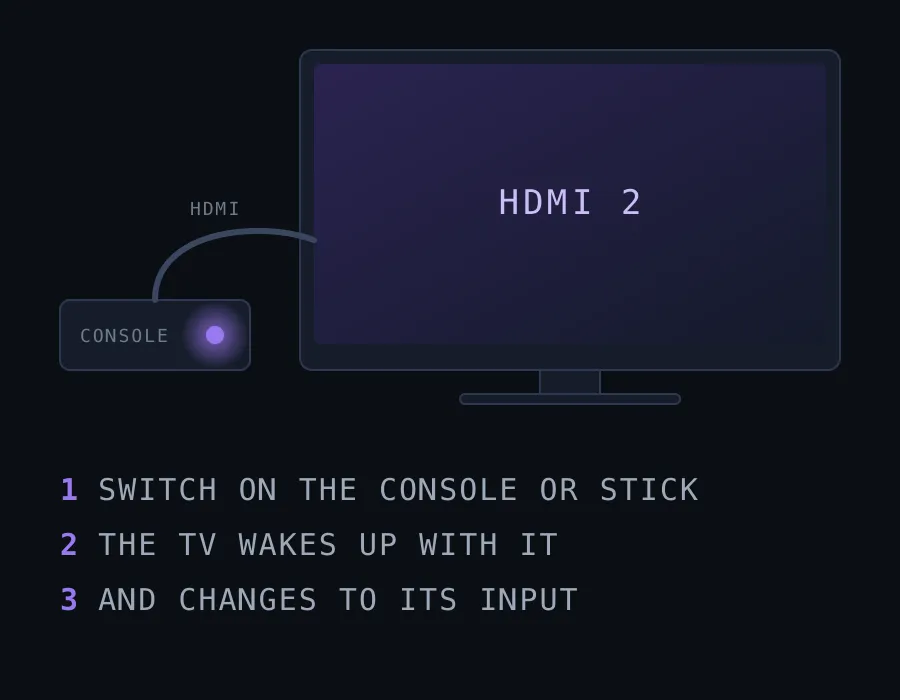
If it doesn’t switch automatically, HDMI-CEC may be turned off in the TV’s settings — worth enabling for exactly this reason.
3. Switch inputs from your phone
If the TV is a smart TV on your Wi-Fi, a phone remote app can change the input. Each brand has a free app of its own (SmartThings for Samsung, LG ThinQ, the Roku app), and Zapp covers all of them on an iPhone. Where the TV shares its input names, you tap the device by name instead of cycling through ports:
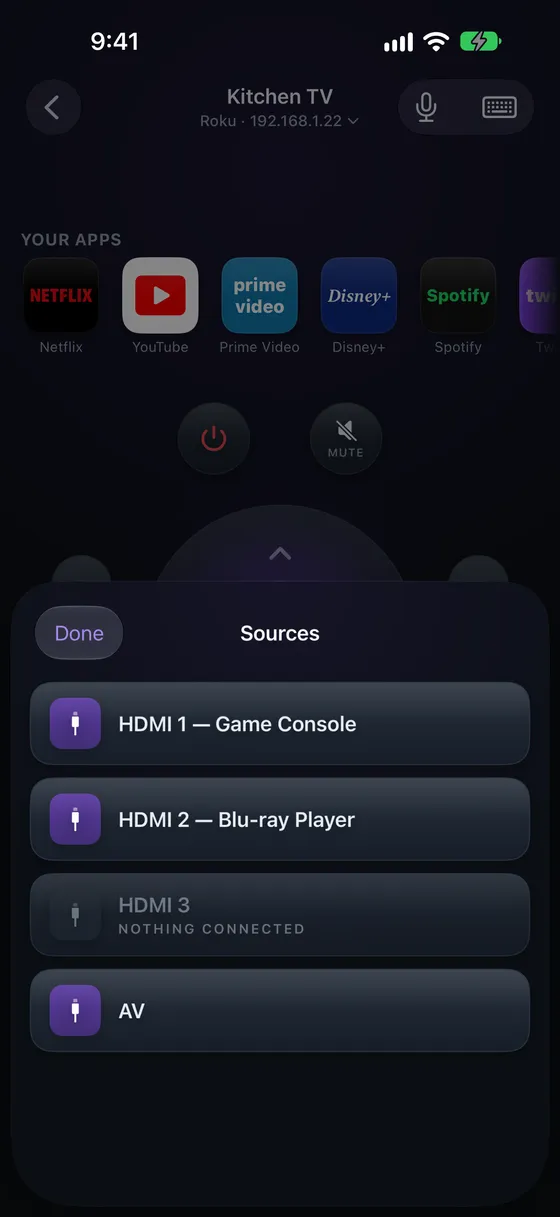
On Roku, LG and Vizio the TV shares those names, so you get the labelled list. Samsung and Google TV don’t share input names with remote apps, so there you get the Source key instead.
When a phone won’t help: the TV has to be on and connected to your Wi-Fi already, and the phone has to be on the same network. An older TV that isn’t a smart TV only listens for infrared, and iPhones have none — for that TV, use the button, HDMI-CEC or the cable trick below.
4. Move the cable instead
If the TV is stuck on one input and nothing above works, change the cable rather than the input. Find out which port the TV is on (many TVs show its name, such as “HDMI 1”, when nothing is playing on it), then unplug the device you want from its own port and plug it into that one. It’s crude, but it needs nothing but your hands.
The short version
Reach under the panel for the TV’s button and hold it to reach Source — that’s the universal fallback. If you switch inputs often, either turn on HDMI-CEC so the TV follows whatever you power up, or use a phone remote that shows each input by name.