
The quickest way: press the TV’s own button.
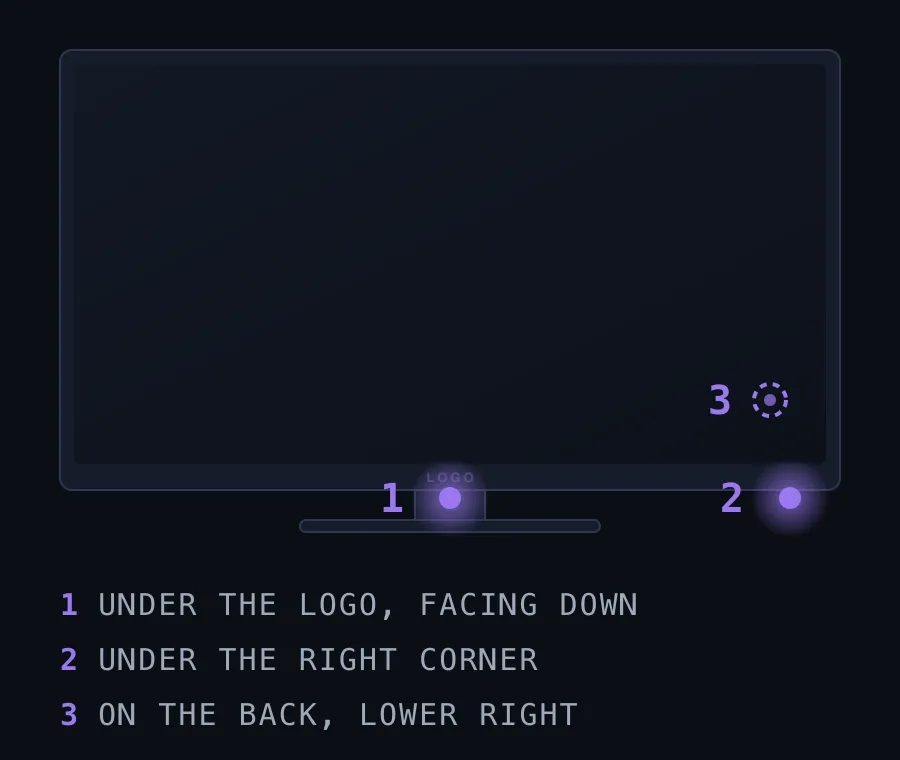
- Reach under the front bottom edge, at the centre (under the Samsung logo) or under the bottom-right corner, and feel for a small button facing down.
- Not there? Feel the back of the TV, lower right as you face the screen — many 2021-and-newer Samsungs put a small jog stick there.
- Press it once. The TV switches on.
On The Frame and some QLEDs the button is on the One Connect box instead. And if your Samsung has no button you can reach, there are still three ways in:
- Where the button is, by model year
- Switch on a connected device (Anynet+)
- The SmartThings app
- Wake it from an iPhone with Zapp
- Can you use a Samsung TV without a remote at all?
- When none of this will work
Where the button is, by model year
| Your Samsung | Where to feel for the button |
|---|---|
| Most 2016–2020 sets | Under the front edge, bottom-right corner or centre-bottom, facing down |
| 2021 and newer (“one button” models) | Under the Samsung logo, or on the back, lower right, as a jog stick |
| The Frame, some QLED and Neo QLED | Often none on the panel: it’s on the One Connect box the TV’s cable runs to |
Samsung moves it between ranges and years, so if your set doesn’t match the table, search your model number (on a sticker on the back) plus “manual”: the manual has a diagram of the buttons.
On the jog-stick models, the same button does more than power:
- Press to turn on, or to select.
- Push up / down for volume.
- Push left / right to change channel or move through a menu.
- Press and hold to open a menu with the input (HDMI) list and power off.
Turn it on without a remote or a power button
Some of the thinnest Samsungs have no button you can reach, and a jog stick on the back is no help when the TV is wall-mounted. Three ways that need neither:
1. Switch on a connected device (Anynet+)
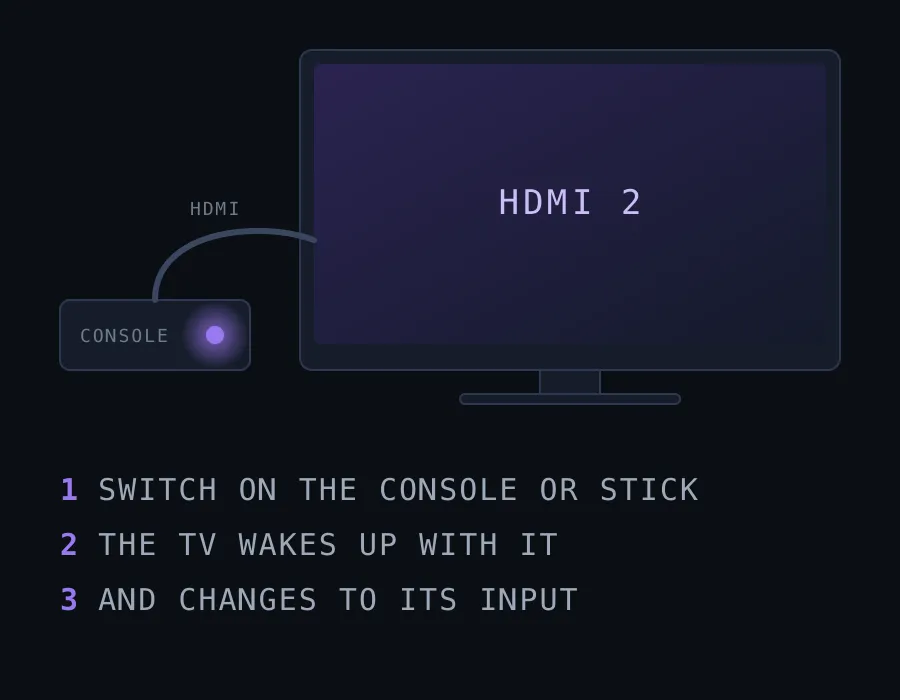
If a console, soundbar, Apple TV or Blu-ray player is plugged into the TV over HDMI, switching that on usually switches the TV on with it and selects its input. Samsung’s name for this HDMI-CEC feature is Anynet+, and it’s on by default on most sets.
2. The SmartThings app
Samsung’s free SmartThings app can switch on a Samsung that’s in standby — if it was set up in SmartThings before. Setting it up needs the phone and the TV on the same Wi-Fi and signed in to the same Samsung account, so it has to be done while the TV is on. On most recent models, the TV’s Power On with Mobile setting (under Network → Expert Settings) must also be on.
3. Wake it from an iPhone with Zapp
Zapp can wake a Samsung from standby too. It sends the TV a Wake-on-LAN signal over your Wi-Fi, then keeps trying to reconnect for about twenty seconds while the TV’s network starts up. Three conditions, all of them real:
- The TV has been paired with Zapp before, while it was on: that’s when Zapp learns the address it needs to wake it.
- The TV is in network standby (switched off, not unplugged), with Power On with Mobile on.
- Waking is part of Zapp Pro, a one-time purchase; the rest of the remote is free.
Can you use a Samsung TV without a remote?
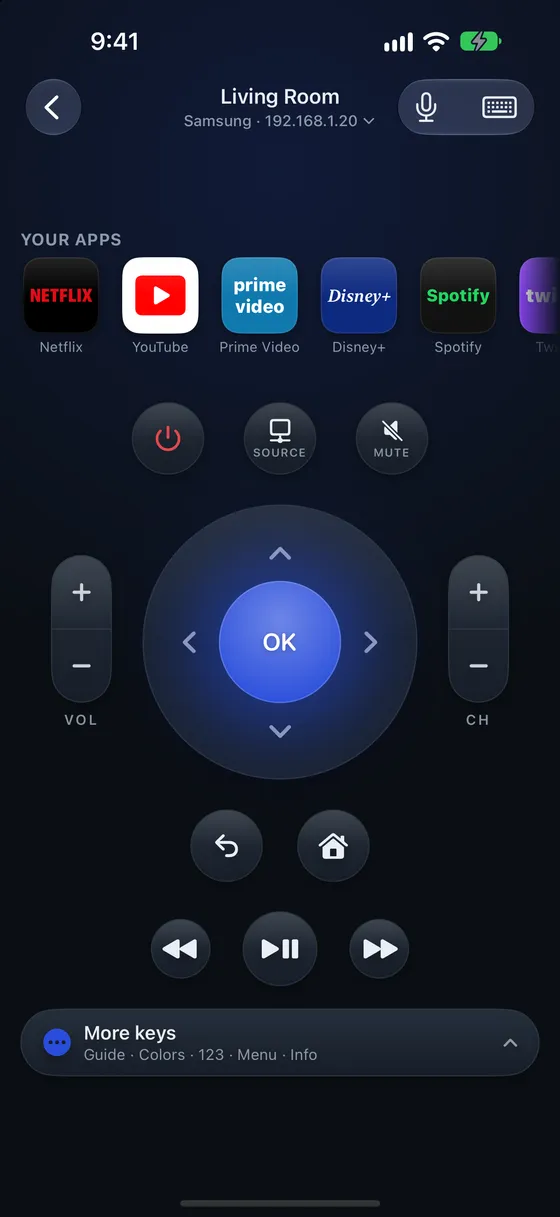
Yes, for everything day to day. The TV’s own jog stick covers power, volume, channels and the input list. For the rest — the home screen, apps, settings — a phone app is a full remote once the TV is on your Wi-Fi: SmartThings, or Zapp on an iPhone, which matches the layout of your Samsung’s own remote and adds shortcuts to the streaming apps your TV has and a keyboard for the TV’s own search and text fields (both Pro).
If the remote is there but has stopped responding, the fix is different — see Samsung TV remote not working.
When none of this will work
- The TV has never been on your Wi-Fi. No app can reach it yet. Use the button or a connected device to turn it on, and set up the network then.
- The TV was unplugged or lost power. It may not answer over the network until it has been switched on by hand once.
- It’s a Samsung from 2015 or earlier. Those use an older protocol that current remote apps, Zapp included, can’t drive.
- You’re relying on the iPhone’s own hardware. iPhones have no infrared, so no iPhone app can work like a traditional remote. Phone control only works over Wi-Fi, with a smart TV on the network.
In any of these cases, a genuine Samsung remote or a decent universal remote is the permanent fix. It costs money and takes a few days to arrive, so for tonight, use the button.