Short answer: yes, if your TV is a smart TV connected to your Wi-Fi — Samsung, LG, Roku, Google TV / Android TV or Fire TV. The iPhone sends the button presses over your home network, so it doesn’t need to point at the TV. What it can’t do is control an older TV that only understands an infrared remote: iPhones have no infrared transmitter.
What you need
- A smart TV, or a streaming device plugged into one (a Roku, Fire TV Stick or Chromecast with Google TV turns any TV with HDMI into one you can control).
- The iPhone and the TV on the same Wi-Fi network. Not a guest network, and no VPN running on the phone: either one hides the TV from the app.
- The TV switched on the first time. Every brand asks you to approve the phone once, on the TV screen. A TV that is fully off can’t do that.
How to set it up, step by step
- Join the same Wi-Fi. On the iPhone, Settings → Wi-Fi, and pick the network the TV uses. If your router has separate 2.4 GHz and 5 GHz names, either usually works, as long as they belong to the same router.
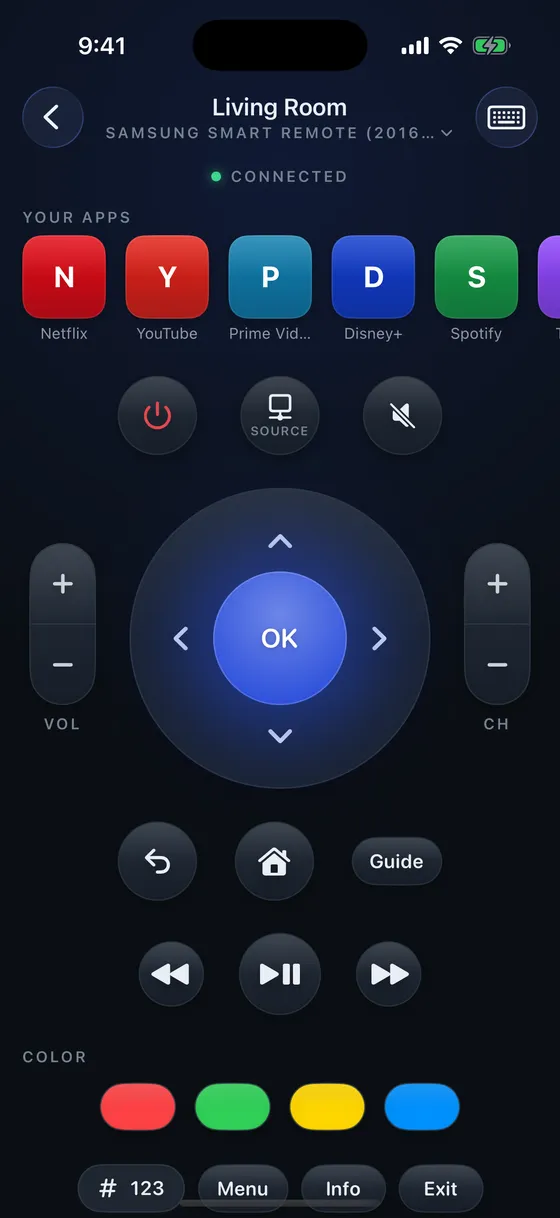
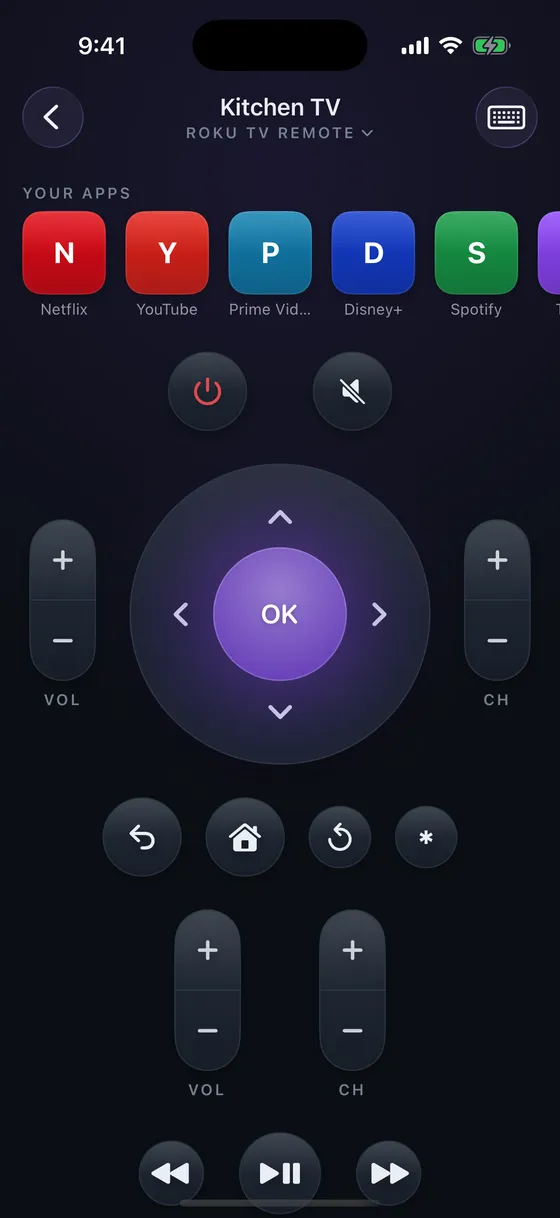
- Install a remote app. Each brand has its own (below), or one app such as Zapp covers all five.
- Allow Local Network access. iOS asks the first time an app looks for devices on your network. Say yes. If you said no, it’s in Settings → Privacy & Security → Local Network.
- Pick your TV and approve it once. The TV shows a prompt or a code; this is the only fiddly part, and it’s different on every brand.
- Use it. From then on the app reconnects by itself whenever the TV is on.
If the app doesn’t find the TV on its own, you can usually type the TV’s address instead — here’s where to find your TV’s IP address on each brand.
Brand by brand
| TV | The brand’s own app | The one-time step on the TV |
|---|---|---|
| Samsung | SmartThings | Choose Allow on the prompt that appears |
| LG | LG ThinQ | Accept the pairing prompt |
| Roku | The Roku App | Usually nothing; if it won’t respond, turn on Control by mobile apps |
| Google TV / Android TV | Google TV, or Google Home | Type the code the TV shows |
| Fire TV | Amazon Fire TV | Follow the prompt on the TV |
The brands’ own apps are free and work. Where they fall short is the household with two brands of TV, where you end up with two apps; and SmartThings, for one, is a whole smart-home app with the remote a few taps in. That’s the gap a single remote app fills. Zapp’s pages for each brand say exactly what works there and what doesn’t: Samsung, LG, Roku, Google TV and Fire TV.
What about Apple TV?
You don’t need an app at all: every iPhone has an Apple TV remote built into Control Centre. If it isn’t there, add it: on iOS 18 and later, touch and hold an empty spot in Control Centre and choose Add a Control; on earlier versions, use Settings → Control Centre. That remote controls the Apple TV box; if the box is plugged into a Samsung or LG TV, a remote app for the TV itself still handles the TV’s power, volume and input.
What an iPhone can’t do
- Control an old, non-smart TV. Those only listen for infrared, and iPhones have none. Some Android phones do, which is where the “use your phone as a universal remote” idea comes from. For an iPhone, the practical fix is a cheap streaming stick in the TV’s HDMI port, or a universal infrared remote.
- Work without Wi-Fi. The phone and the TV need a network between them.
- Switch on a TV that has never been paired. Use the TV’s own button that first time — here’s where it hides. Once paired, a Samsung or Roku in network standby can be woken from the phone.
Is it free?
The brands’ apps are free. Many third-party remote apps charge weekly subscriptions. Zapp’s whole button remote is free on every TV you own; an optional one-time payment adds a keyboard, app shortcuts, the LG pointer and waking from standby where the TV allows it — here’s what Pro adds on each brand.