
The quickest way: your phone, in about a minute.
- Put your phone on the same Wi-Fi network as the TV. Google’s own help page says this is the one hard requirement.
- Open the Google Home app (or the Google TV app) and choose the TV.
- Type the code the TV shows on screen. You now have a remote, with a keyboard for search.
The TV has to be on for step 3. If it’s off, or the phone can’t find it, try another of the four ways:
- Use a phone app — Google’s, or another remote app
- Wake the TV from a connected device (HDMI-CEC)
- Use the TV’s own button
- Pair a replacement remote
1. Use a phone app
The Google Home app includes a remote for any Google TV or Android TV device on your network, and the Google TV app has one too. Both pair the same way: same Wi-Fi, choose the TV, type the code from the screen. From there you get a direction pad, volume, and a keyboard for search — far quicker than typing with arrow keys.
If the app can’t find the TV:
- Check the Wi-Fi. A guest network, or a VPN running on the phone, keeps the phone and the TV apart.
- On an iPhone, allow Local Network access: Settings → Privacy & Security → Local Network, and switch the app on. Without it no app can see the TV.
- Restart the TV: Google’s own fix is to unplug it for about ten seconds.
- Volume buttons do nothing? Google suggests setting the TV’s volume control to Auto (CEC), so the phone’s volume keys reach whatever plays the sound.
Other remote apps that speak the Android TV remote protocol pair the same way, with the on-screen code — Zapp is one, on iPhone, with the direction pad and volume free, no subscription and no ads. Its one-time Pro upgrade adds a keyboard that opens by itself when the TV asks for text, voice typing, and shortcuts to a fixed list of popular apps. Be clear on what it doesn’t do here: Google TV doesn’t tell remote apps which apps are installed or let them wake the TV from standby, so Zapp can’t either.
2. Wake it from a connected device
If the TV is off, HDMI-CEC can bring it up: switch on a device plugged into it — a console, a soundbar, a Blu-ray player — and the TV usually powers on and changes to that input by itself.
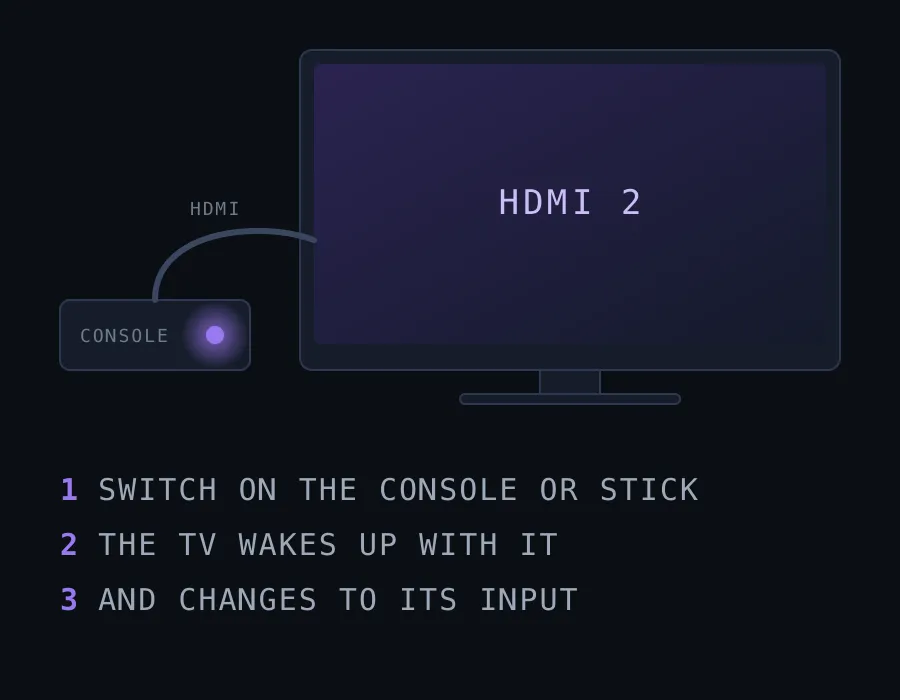
It’s on by default on most sets. If nothing happens, the setting may be off in the TV’s display or input settings — look for HDMI-CEC, or the maker’s own name for it (BRAVIA Sync on Sony, Anynet+ on Samsung).
3. Use the TV’s own button
Most televisions running Google TV or Android TV — Sony, TCL, Hisense and others — have a physical button or small joystick on the set: under the bottom edge, at the centre or the right corner, or on the back. A press turns the TV on; on many models a press-and-hold opens a menu with the input list.
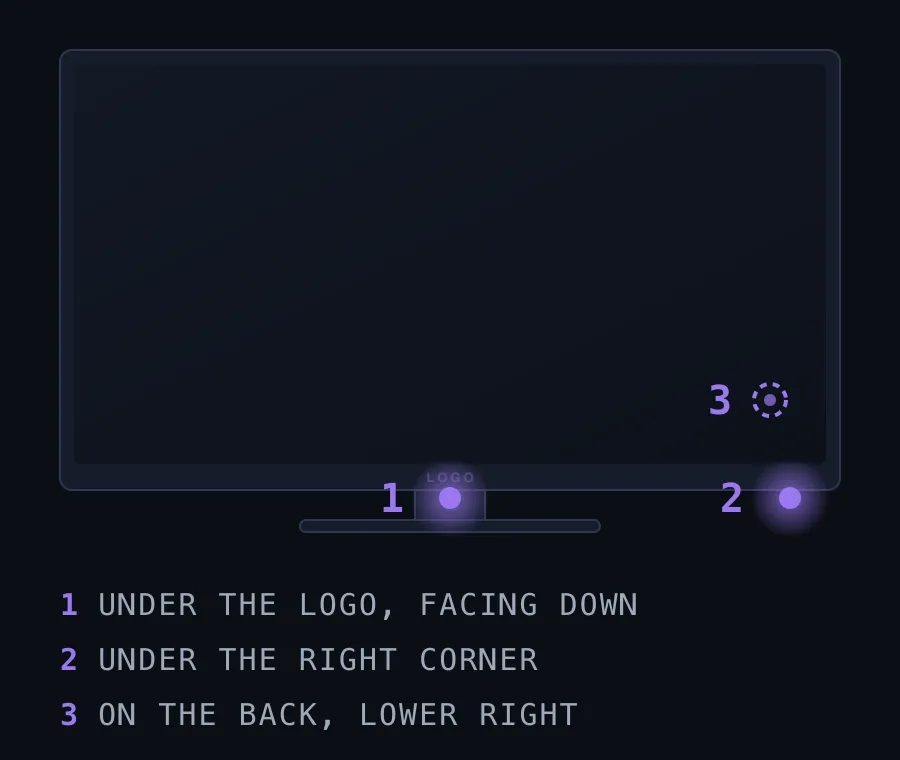
A streaming stick or box, such as a Chromecast with Google TV, has no button of its own: wake the TV, then use the phone.
4. Pair a replacement remote
A genuine replacement, or a compatible universal remote, is the right long-term fix. Pairing a Bluetooth remote happens in the TV’s settings — on Google TV, under Remotes & Accessories (the exact name varies a little by model) — and with no remote at all you can reach that menu from the phone app in step 1. Use the phone tonight, and pair the new remote when it arrives.