
On most TVs the power button is under the bottom edge of the screen, facing down: at the centre, below the logo, or near the bottom-right corner. Some brands put it on the back, lower right or lower left, or on the side. Reach under the frame first, then feel along the back. It’s usually one small button or a little joystick.
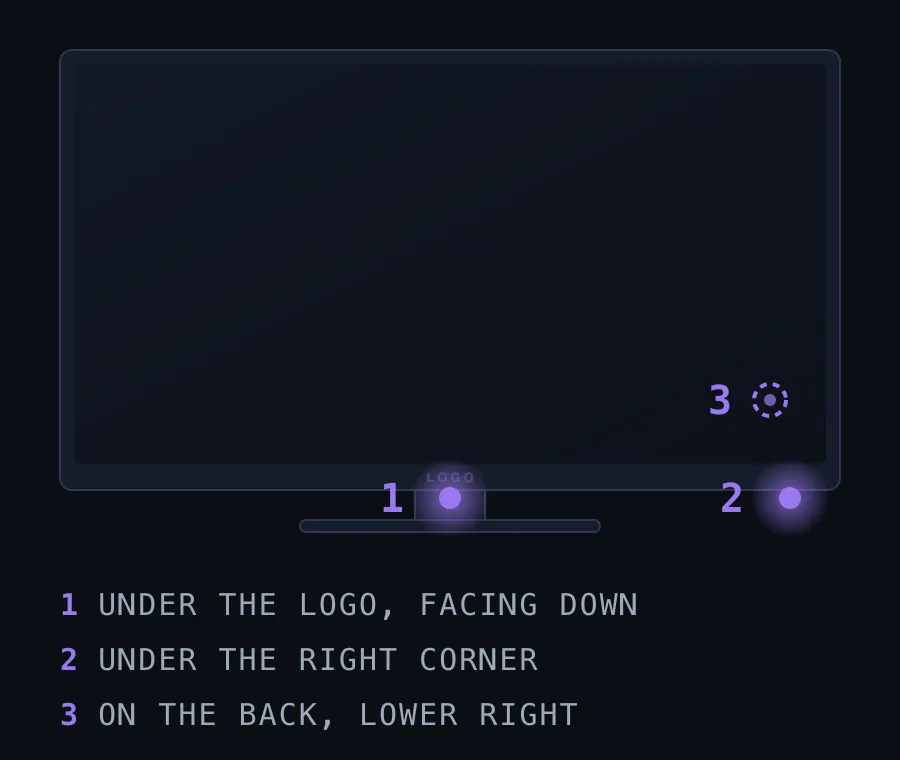
Jump to your brand:
- Vizio
- Roku TV (TCL, Hisense, Onn and others)
- TCL Google TV
- Hisense
- LG
- Sony
- Samsung
- The button does nothing
- No button you can reach
Quick table
| Brand | Where the manufacturer puts it | What the button does |
|---|---|---|
| Vizio | Under the front sensor (2022 V-Series); on the back or side of older sets | Power and Input in one button |
| Roku TV | “Side, bottom, or back panel”, by model | One button, a joystick, or a row of 3–7 buttons |
| TCL Google TV | Usually under the centre of the TV, facing down | Power + an on-screen options menu |
| Hisense | On the front, per the model’s quick setup guide | Standby and Source in one button |
| LG | Below the screen, by model | A jog button: press, or push in four directions |
| Sony | Underside, bottom centre on many 2022+ sets | Power, then an on-screen menu |
| Samsung | Under the logo, bottom-right, or on the back | A jog stick on most sets |
Every manufacturer says the exact spot varies by model, so the surest way is your model number (on the sticker on the back) plus “manual”: the manual has a drawing of the buttons.
Vizio
Vizio has moved the button over the years. On the 2022 V-Series it’s a single Power/Input button under the remote sensor on the front. On older sets, such as the 2017 D-Series, it’s on the rear panel, and some older models had a row of buttons on the side.
- Press when the TV is off to turn it on.
- Press when it’s on to step to the next input.
- Press and hold for about 3 seconds, then let go, to turn it off.
- Don’t hold it for 12 seconds: on the V-Series that resets the TV to factory settings.
The power light only flashes briefly as the TV starts, then goes out, so a dark light is normal while the TV is on.
Roku TV (TCL, Hisense, Onn and others)
Roku’s own user guide says only that the buttons are on the TV’s side, bottom or back panel, and lists seven layouts. The common ones:
- A single button. A short press (under 2 seconds) turns the TV on. While it’s on, a short press opens the input list, and each further press moves to the next input. A long press (over 2 seconds) turns it off.
- Three buttons. The middle one is power and inputs, as above; the outer two are volume, or move through the input list while it’s open.
- A joystick. Press in to switch between on and standby; push up and down for volume, left and right for inputs.
The status light on a Roku TV is lit in standby and off while the picture is on. A slow pulse means it’s starting, shutting down or updating; two short blinks, repeated, mean it has lost its network connection.
TCL Google TV
TCL’s support pages say the button is usually under the centre of the TV, facing down, though it can sit slightly to one side, along the bottom edge, or on the back or side, depending on the series. TCL calls it the Power + Options button:
- Press once in standby to turn the TV on.
- Press once while it’s on to open a small menu on screen; short presses move through it, and a long press selects.
- On the 2022 4- and 5-Series, press and hold to turn the TV off.
Hisense
Hisense’s quick setup guides mark a single power button on the front of the TV, labelled Standby/Source, next to the power light; the exact position is in your model’s guide.
- Quick press in standby to turn it on. The light is white in standby.
- Quick press while it’s on to open a menu, quick presses to move through it, and a long press to confirm.
(A Hisense with Roku’s home screen follows the Roku TV section instead.)
LG
LG’s manuals put the button below the screen, and LG says to check your model for its exact position. LG calls it the jog button, and documents two kinds:
- Press only: press to turn the TV on, or to change the menu while it’s on; press and hold (over a second) to turn it off or select.
- Press or push: press to turn it on, press and hold to turn it off, push it for volume and channels.
On models with an on-screen menu, one press while the TV is on opens TV off, Input, Settings and Close.
More, including LG’s own phone app: turning on an LG without the remote.
Sony
On many Sony BRAVIA models from 2022 on, the button is on the underside, at the bottom centre. Some differ: the BRAVIA 7 has it on the back left, behind the side cover, and sets from 2014–2017 may have it on the side, back, front or top. On recent Google TV models, pressing it shows a menu on screen.
Samsung
Samsung moves its button between the centre under the logo, the bottom-right corner and the back, and on The Frame it’s on the One Connect box. The model-year table and what the jog stick does are in turning on a Samsung without the remote.
The button does nothing
- Look for the standby light. On most TVs it glows while the set is off but plugged in. No light at all means no power: check the plug, the wall socket and any power strip.
- Unplug the TV for 60 seconds, then plug it back in and press the button once.
- A flashing light usually means an error code. Sony asks you to count the red flashes (they repeat every three seconds), unplug for two minutes, and contact support with the number if it comes back. TCL lists a standby light that keeps flashing as a reason to contact support. Your brand’s support page has the details for your model.
Beyond that, it’s a repair: don’t open the TV, as the power board inside holds a charge after it’s unplugged.
No button you can reach (wall-mounted)
- A connected HDMI device. Switching on a console, soundbar or streaming box usually switches the TV on too. The feature is HDMI-CEC, under each brand’s own name: Anynet+ (Samsung), SimpLink (LG), BRAVIA Sync (Sony), CEC (Vizio, where it must be enabled), 1-touch play (Roku TV, off by default), HDMI CEC or HDMI Control (TCL Google TV). For how it works, see changing the input without the remote.
- The manufacturer’s app, if the TV was set up with it before: SmartThings (Samsung), ThinQ (LG) or the Roku app.
- Zapp on an iPhone. Zapp works over Wi-Fi, not infrared, so the TV must be on your network and in standby, not unplugged. With Zapp Pro it can wake a Samsung, an LG (after one connection, with Mobile TV On switched on) or a Roku TV (with Fast TV start, on models that have it). A Vizio wakes from Zapp’s free Power key only with Quick Start mode on. On Google TV and Fire TV, Zapp is a full remote once the TV is on, but it can’t switch them on.